Installing on Windows
Download
Download edge-insights-<version>-windows-x86_64-setup.exe from the
Software Download
page of your canedudev.com account. If you do not have an account yet,
see Getting Edge Insights.
Security warnings
Windows can show separate warnings when you download the installer and when you run it. Both are expected; click through them to continue.
Microsoft Edge blocks the download
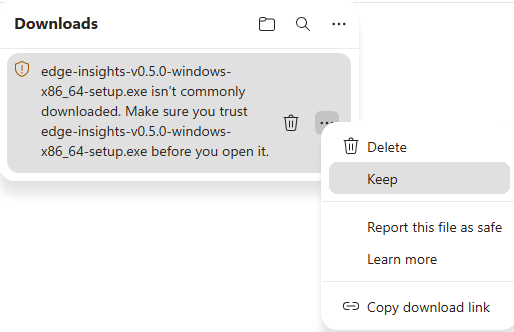
After the download finishes, Edge flags the installer because it "isn't commonly downloaded."
-
Click the three dots, then choose Keep from the menu.
-
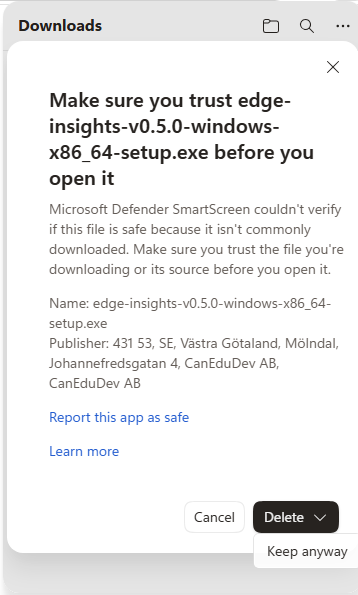
Click the Delete dropdown arrow, then choose Keep anyway.
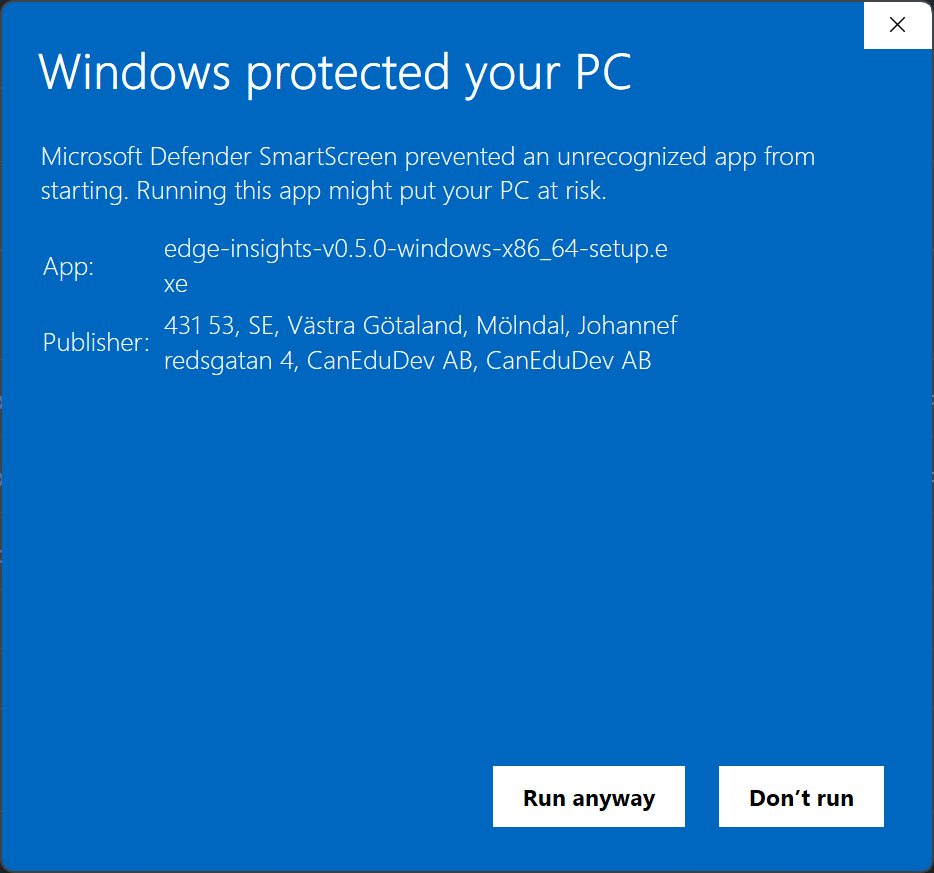
Windows SmartScreen blocks the installer.
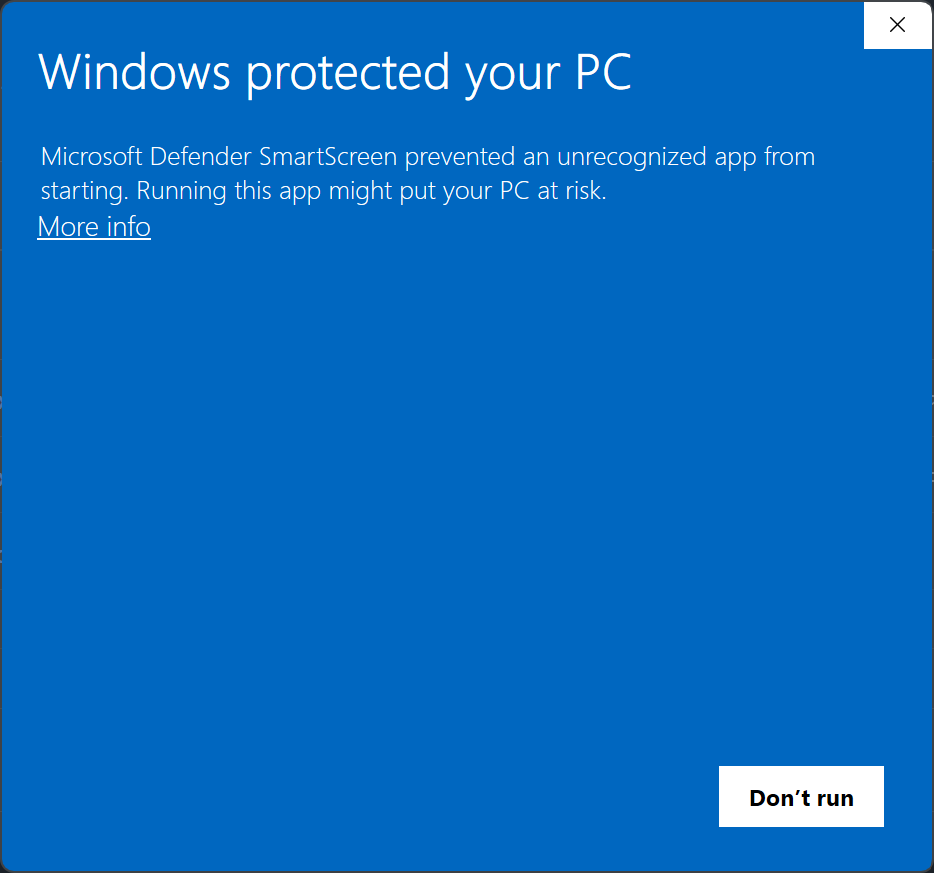
When you run the downloaded installer, Windows may separately show a blue "Windows protected your PC" screen. This is a different, OS-level warning, not the Edge one above.
-
Click More info.
-
Click Run anyway.
Install
Run the downloaded installer. It installs per-user, into
%LOCALAPPDATA%\CanEduDev\EdgeInsights. No administrator rights are
required for the Edge Insights installation itself.
-
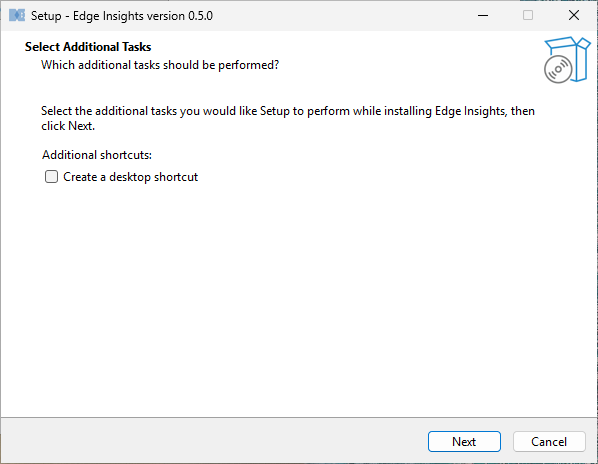
Optionally check Create a desktop shortcut, then click Next.
-
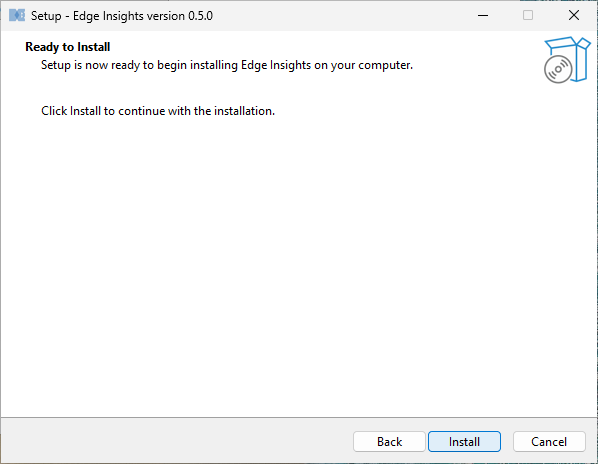
Click Install to begin.
-
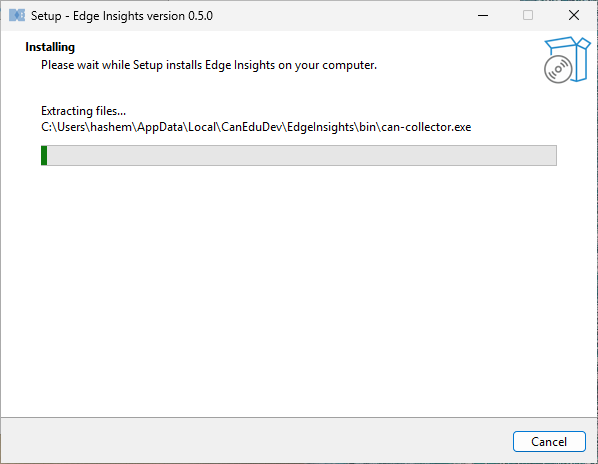
Setup extracts and installs the application files.
-
The installer checks for the Kvaser CAN driver and the Kvaser CANlib runtime, and installs them if missing. A Windows UAC prompt appears for each Kvaser installer it runs. Click Yes to continue.
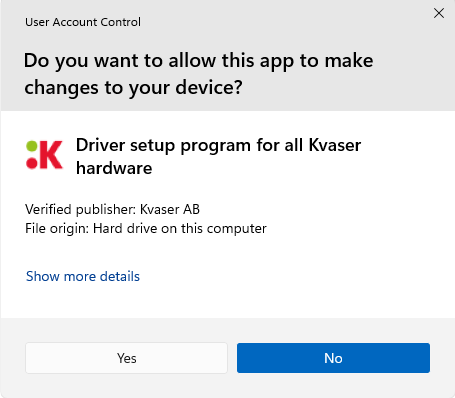
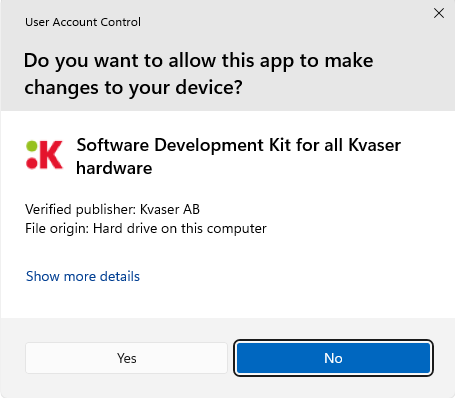
-
Setup finishes one of two ways, depending on whether the Kvaser driver was just installed:
-
Driver installed: a reboot is required before the CAN interface can be used. Choose to restart now or later.
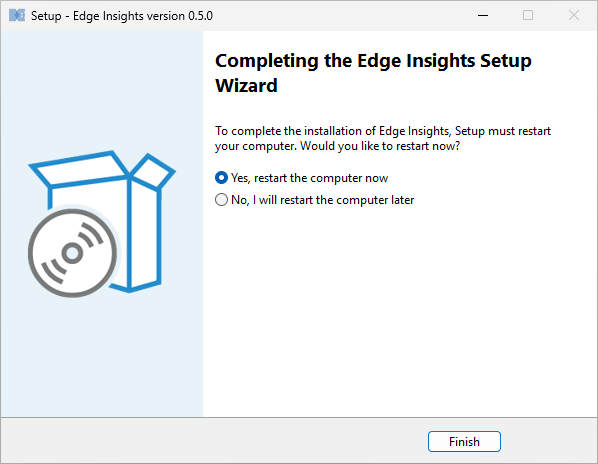
-
Driver already present: Setup finishes directly. Leave Launch Edge Insights checked to start it right away.
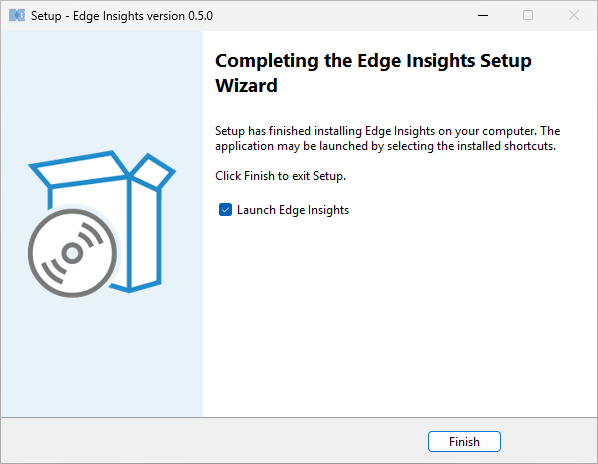
-
Launch
Start Edge Insights from the Start menu, or the desktop shortcut if you created one.
Uninstall
Uninstall Edge Insights from Settings → Apps → Apps & Features, like any other Windows application.
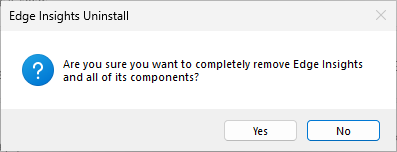
Setup asks a few questions before removing anything:
-
Whether to also remove your data.
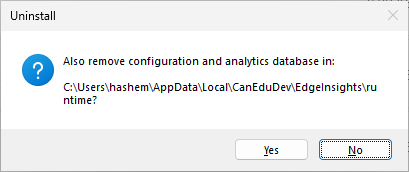
- Yes deletes the configuration and analytics database in
%LOCALAPPDATA%\CanEduDev\EdgeInsights\runtime, e.g. CAN settings, DBC files, imported logs, and analysis results. - No (the default) leaves this data in place, so it's still there if you reinstall later.
- Yes deletes the configuration and analytics database in
-
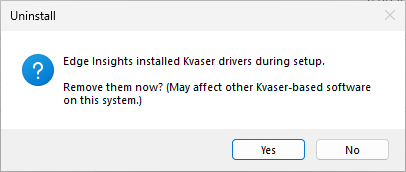
If Setup installed the Kvaser driver for you, whether to remove it too. Removing it may affect other Kvaser-based software on the same machine. Answering Yes brings up a separate Windows UAC prompt, since removing the driver needs administrator approval.
-
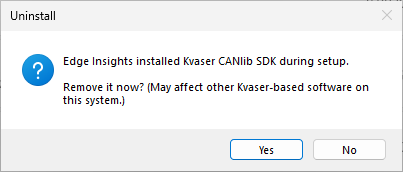
Same question for the Kvaser CANlib SDK, if Setup installed it. Also followed by a UAC prompt if you answer Yes.
-
A final confirmation before removal starts.