Settings
Settings configures the CAN interface, anomaly detection, storage, and the license. Open it from Settings in the portal sidebar. The page has three tabs:
- Bus: bus settings, the DBC file, J1939 Mode, and Boot Autostart.
- Detection: anomaly thresholds, baseline learning, and known CAN IDs.
- Device: storage, retention, the license, and the setup wizard.
Interface
Select the interface at the top of the page. Edge Insights captures from one interface at a time. If your hardware has more than one channel, choose the channel to use here. The badge next to the list shows whether the interface is up.
- Bring up starts capture on the selected interface. It can take up to 10 seconds. The button stays disabled until a nominal bitrate is set. A device that joins a bus at the wrong bitrate disturbs the other devices on it, so Edge Insights never brings the bus up on a guessed rate.
- Bring down stops capture. Data captured just before bring-down is still processed in the background, so dashboards may keep updating for a short time.
Read-only while the interface is up
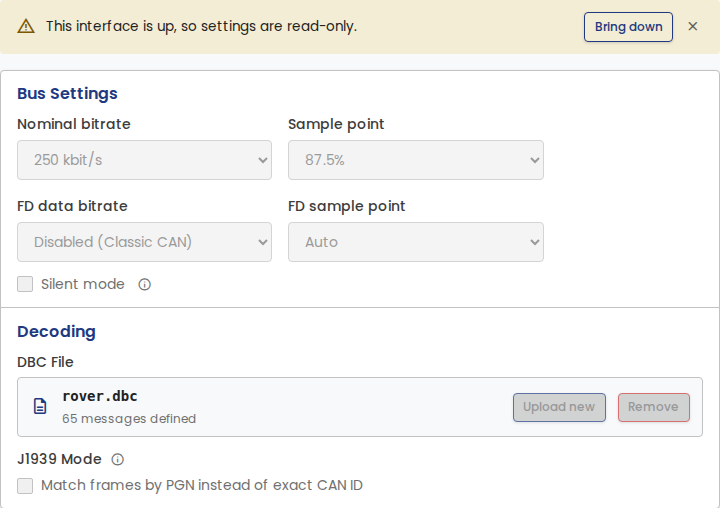
While the interface is up, the Bus and Detection tabs are read-only. To change a setting there, select Bring down first. Two controls stay available while the interface is up: Boot Autostart and Stop learning. Device settings stay editable and do not interrupt recording.
Saving changes
When you change a setting, a bar at the bottom of the page shows Unsaved changes. Select Save to apply the changes, or Discard to undo them. A change to the bus settings applies the next time you bring the interface up.
Missing interface
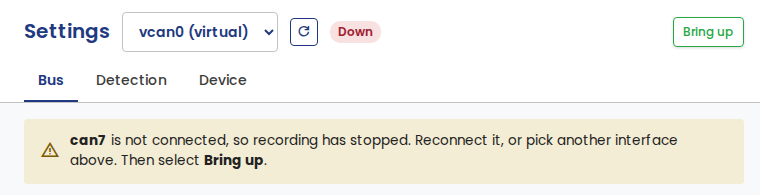
If the configured interface is not connected, recording stops and the page shows a warning. Reconnect the interface or select another one, then select Bring up. On Linux, capture also starts again on its own if the interface is back within about 30 seconds.
Kvaser channel open in another application
If another application, such as Kvaser CanKing, has a Kvaser channel open, the interface shows Open elsewhere and its settings stay editable. Edge Insights can share the channel. While the other application holds it, Bring up can fail, or the bus settings saved here may not apply. See Sharing the CAN bus with other tools.
Bus
Bus settings
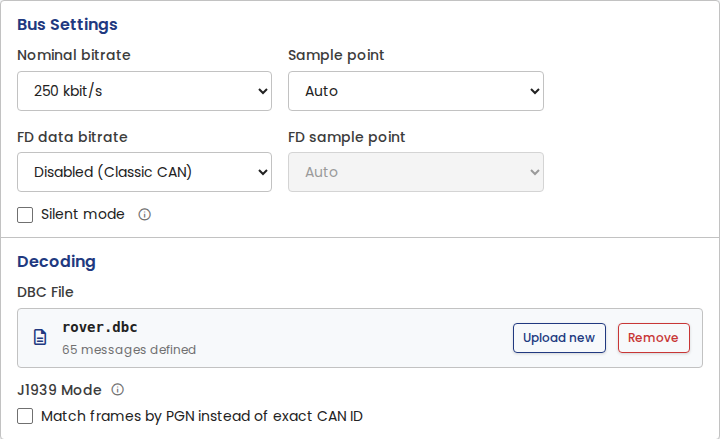
Set the Nominal bitrate and, for CAN FD, the FD data bitrate.
Sample point and FD sample point stay disabled until their bitrate is set. A sample point is part of the bit timing, so it has no effect without a bitrate. Auto lets the driver choose.
Silent mode makes the interface receive only. It transmits nothing on the bus, not even acknowledgments (ACKs). Some CAN interfaces, such as virtual ones, do not support silent mode. For these interfaces the check box is off and dimmed, and a hint below it says that the controller does not support it.
Note
SocketCAN virtual interfaces have no physical bus parameters to set, so the settings are dimmed. The interface can still be brought up, and the bitrate requirement does not apply to it.
Decoding
DBC File shows the DBC file in use and how many messages it defines. Select Upload new to replace it, or Remove to decode nothing. A DBC file decodes raw CAN frames into named signals.
Signals wider than 64 bits are skipped when the file loads. These describe payloads that are reassembled from several frames, which Edge Insights does not currently support. The rest of the file loads normally.
J1939 Mode matches frames by PGN (Parameter Group Number) instead of exact CAN ID. Turn it on for a J1939 bus. NMEA 2000 uses the same PGN addressing, so turn it on for NMEA 2000 buses too. NMEA 2000 signals sent as Fast Packet span several frames and are not decoded.
A J1939 frame carries the address of the sending device in the lowest byte of the CAN ID, so the same message arrives with a different CAN ID from every device that sends it. Matching by PGN ignores that address, so one entry covers every sender of the message, including devices that appear on the bus later.
The setting applies to the whole pipeline, not only to decoding. It controls how DBC messages are matched, and how the known IDs list and the learned baseline are keyed. A DBC file is not required. With no DBC file loaded, J1939 Mode still keys foreign-traffic detection by PGN.
For a J1939 database, turn on J1939 Mode. A J1939 database defines its messages per PGN, so with the mode off, decoding does not work as intended.
J1939 Mode applies when you select Save. Stored frames are then decoded again, which takes a few seconds.
Switching J1939 Mode
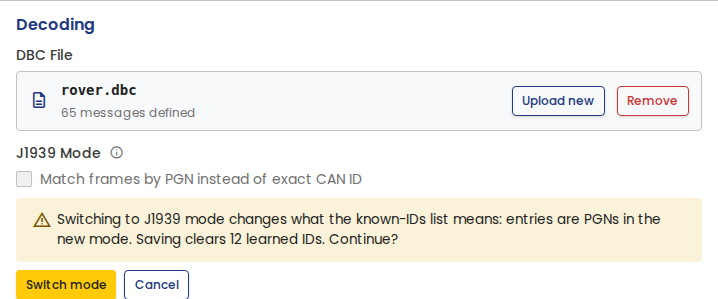
The same number means different things in the two modes, so known IDs cannot be carried across. If the known IDs list is not empty, switching J1939 Mode asks for confirmation first. The confirmation states which configured and learned entries are cleared.
Select Switch mode to clear them, then select Save. Entries that you add after the switch are kept. Select Cancel to leave the mode and the list unchanged.
Boot Autostart
Boot Autostart brings the configured interface up when Edge Insights starts. When it is off, the interface stays down until you select Bring up. The setting applies when you select Save, and you can change it while the interface is up.
This option appears only on installs that are set up to start at boot, which is a choice made when Edge Insights is installed. On a desktop install, Edge Insights runs while the application is open, so the option is hidden. See Starting at boot.

Danger Zone
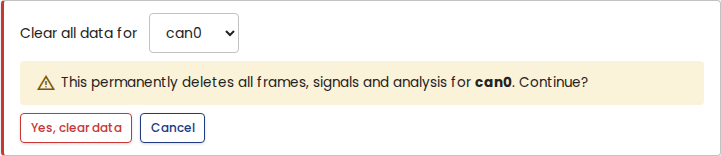
Clear all recorded data for an interface: raw frames, decoded signals, and analysis results. Select the interface and Clear bus data, then confirm. This cannot be undone.

Detection
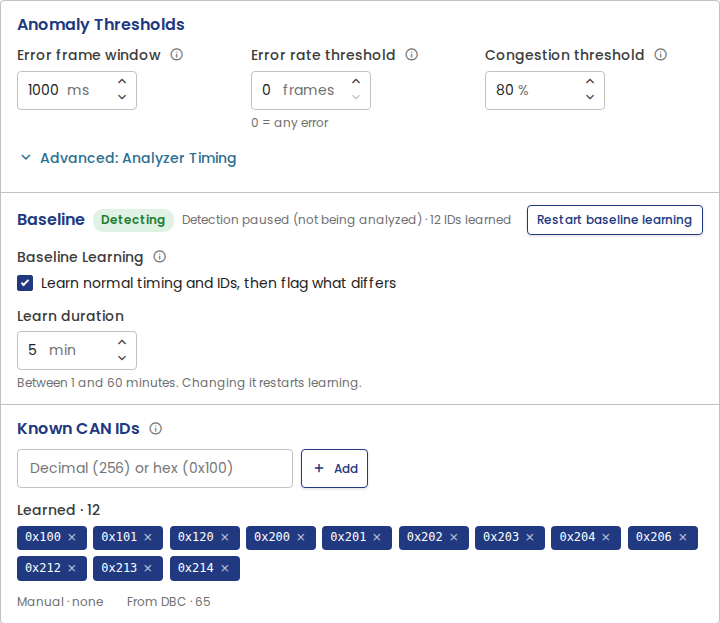
Anomaly thresholds
- Error frame window (ms): the window over which error frames are counted.
- Error rate threshold (frames): more error frames than this in one window fire a Bus Error anomaly. 0 means that any error frame is an anomaly.
- Congestion threshold (%): bus load above this fires a Congestion anomaly.
Advanced: Analyzer Timing holds the analyzer's polling, aggregation, and flush intervals. The defaults suit most buses. Hover over the info icon next to a field for a description.
Baseline
Baseline learning establishes what normal bus traffic looks like, so later traffic can be compared against it. The learn phase records the timing of each CAN ID and the IDs that are present. When it ends, Edge Insights freezes the baseline and detects anomalies against it.
- Baseline Learning: turn learning on or off. Off switches anomaly detection to direct mode and keeps the learned baseline. On detects against that baseline again, or starts learning when there is none.
- Learn duration: how long the learn phase runs, from 1 to 60 minutes. Changing it restarts learning.
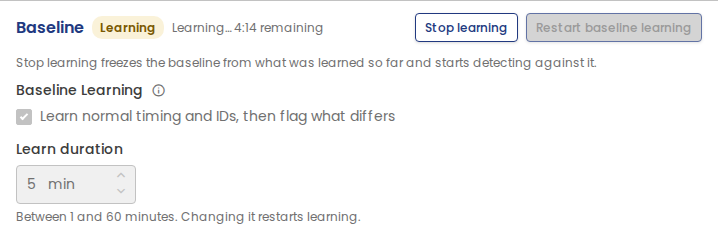
- Stop learning: ends the learn phase early and freezes the baseline from what was learned so far. While learning runs, select Stop learning before you turn baseline learning off. Stop learning works while the interface is up.
- Restart baseline learning: discards the current baseline and starts over.
The badge next to the title shows the phase, and how much of the learn phase remains.
Learning counts only recorded time. While the interface is down, the learn phase waits. Learning ends on its own when the bus goes quiet after the learn duration. A log imported with its original timestamps that is shorter than the learn duration is learned in full when the import ends.
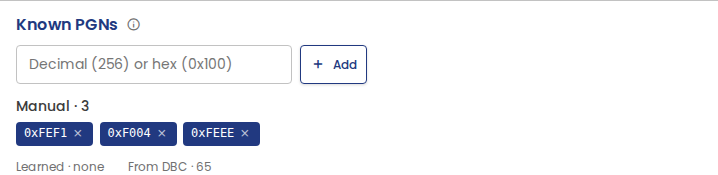
Known CAN IDs and Known PGNs
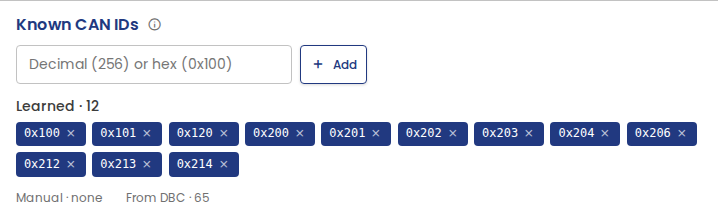
CAN IDs that are not in the DBC file, not learned into the baseline, and not in this list are flagged as foreign traffic. Add an ID to stop it being flagged.
Below the input, the list shows three groups:
- Learned: IDs learned into the baseline. Removing one drops it from the allowlist until baseline learning restarts.
- Manual: IDs you added.
- From DBC: how many messages the DBC file defines. These IDs are known automatically.
The title follows J1939 Mode:
| J1939 Mode | Title | Entries are | Largest value |
|---|---|---|---|
| Off | Known CAN IDs | exact CAN IDs | 0x1FFFFFFF |
| On | Known PGNs | PGNs | 0x3FFFF |
Values outside the range for the active mode are rejected when you add them. With J1939 Mode on, a parameter group is listed once and covers every device that sends it. With the mode off, each device needs its own entry, because each one sends the message with a different CAN ID.
Device
Storage and retention
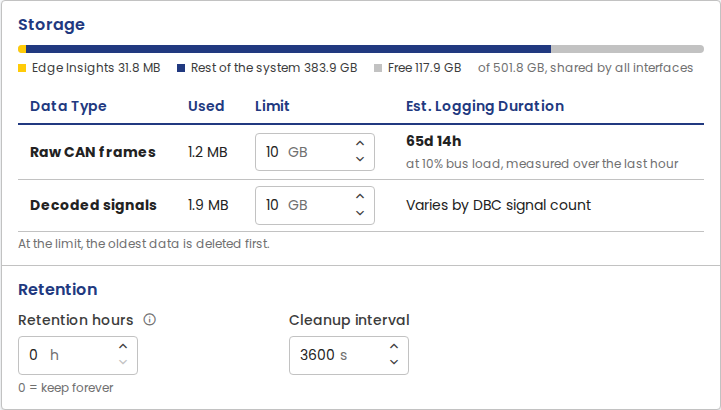
The storage bar shows the space that Edge Insights uses, the rest of the disk, and the free space. The disk is shared by all interfaces.
Set a storage limit for Raw CAN frames and Decoded signals. At the limit, the oldest data is deleted first. Est. Logging Duration estimates how long the raw-frame limit lasts. It uses the traffic measured on your bus in the last hour. With no recent traffic, it assumes 40% bus load at 250 kbit/s.
Retention hours deletes data older than the set age. 0 keeps data until a storage limit is reached. Cleanup interval sets how often old data is deleted.
Imported logs that keep their original timestamps are not affected by the retention setting. They are kept until you delete them.
License
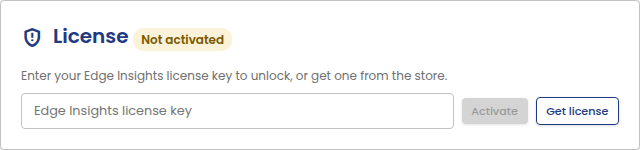
The License card shows whether Edge Insights is activated on this installation. To get a license key, see Getting Edge Insights.
To activate, enter your license key and select Activate. The machine needs an internet connection to activate. After activation, Edge Insights runs offline.
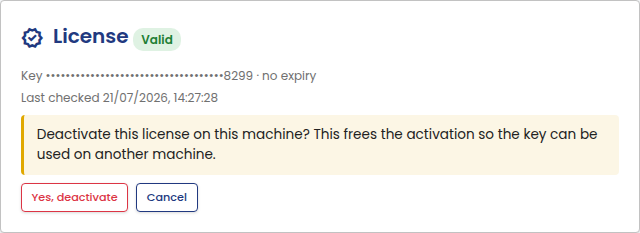
Once activated, the card shows a masked key, the expiry date, and when the license was last checked:
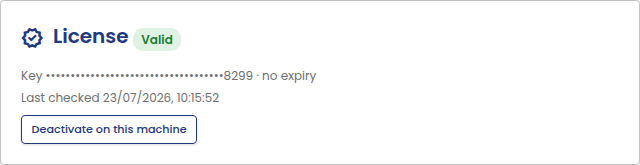
To move a license to a different machine, deactivate it here first. Select Deactivate on this machine, then Yes, deactivate. This frees the activation, so the same key can be used on another machine.
You can also deactivate a license without access to the machine it is activated on, from the License keys page of your canedudev.com account.
When the license is not activated, has expired, or has a key that is not valid, Home shows a warning. Its Activate button opens the Device tab.
Setup wizard
Re-run setup wizard opens the setup wizard again.