Import Log
Import a CAN log file for offline analysis, or load the bundled demo data to explore Edge Insights without live hardware. Open it from Import Log in the portal sidebar.
1. Source
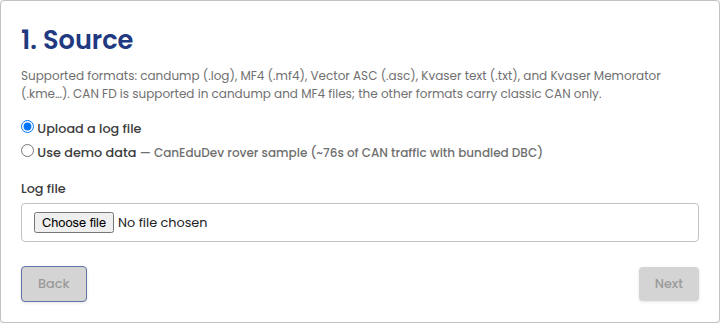
Choose a log file to upload, or use the bundled demo data, a short
CanEduDev Rover sample with its own DBC file. Supported formats: candump
(.log), MF4 (.mf4), Vector ASC (.asc), Kvaser text (.txt), and
Kvaser Memorator (.kme…). CAN FD is only supported in candump and MF4
files; the other formats carry classic CAN only.
2. Interface & bitrate
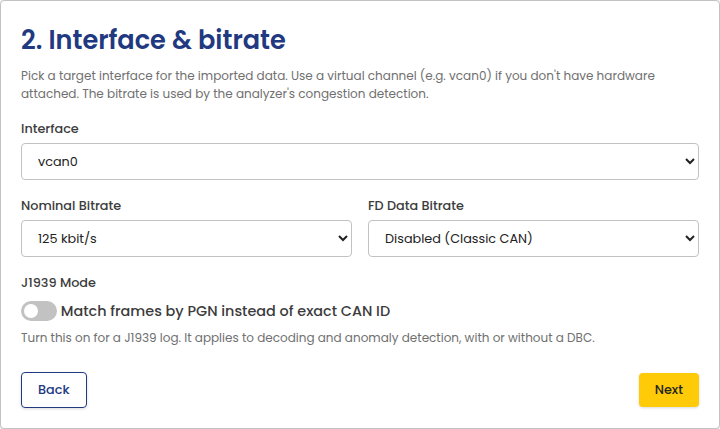
Choose the interface to import into and its bitrate. Turn on J1939 Mode if the log came from a J1939 bus. The setting is independent of the DBC choice in step 4, and it applies with or without a DBC file. Demo data is classic CAN, so the option is disabled for it.
3. Timestamps
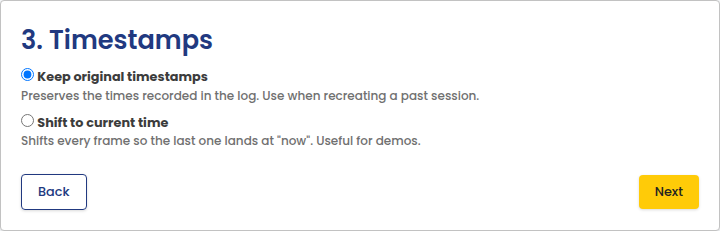
Keep the original recorded timestamps to recreate a past session, or shift every frame so the last one lands at "now". Useful for demos.
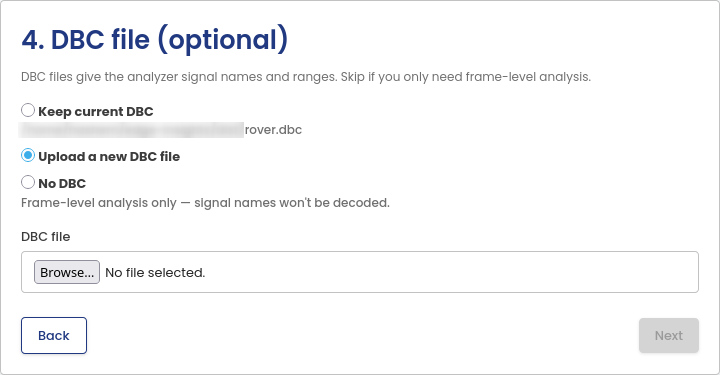
4. DBC file (optional)
Keep the interface's current DBC file, upload a new one, or import with no DBC. Choosing Upload a new DBC file adds a file picker below the options, as shown below. Demo data always uses its bundled DBC, so it offers no choice here.
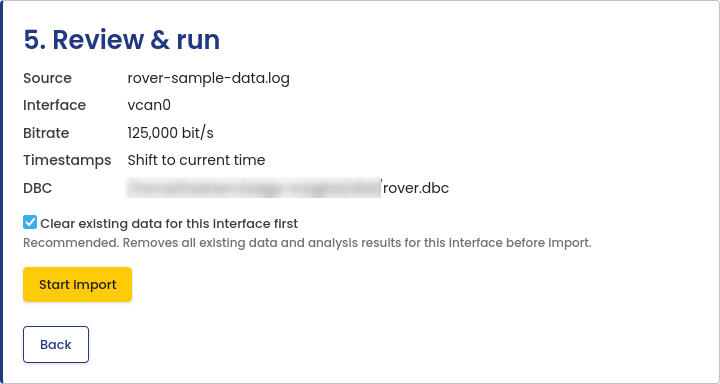
5. Review & run
Review the summary and start the import. Clearing existing data for the interface first is recommended so results aren't mixed with a previous import.
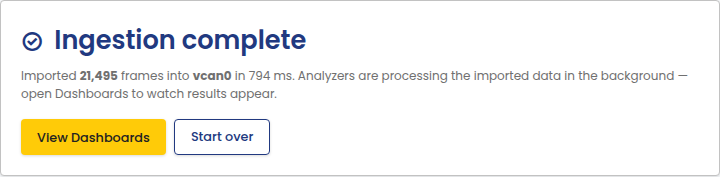
Once the import finishes, open the dashboards to see the results.